Find answers, watch tutorials, and get help with WeCazza. This page walks you through the first week: starting the 15-day trial, importing customers by CSV, scheduling jobs, inviting your team, getting paid through Stripe, connecting QuickBooks Online, and managing billing, cancellation or account deletion.

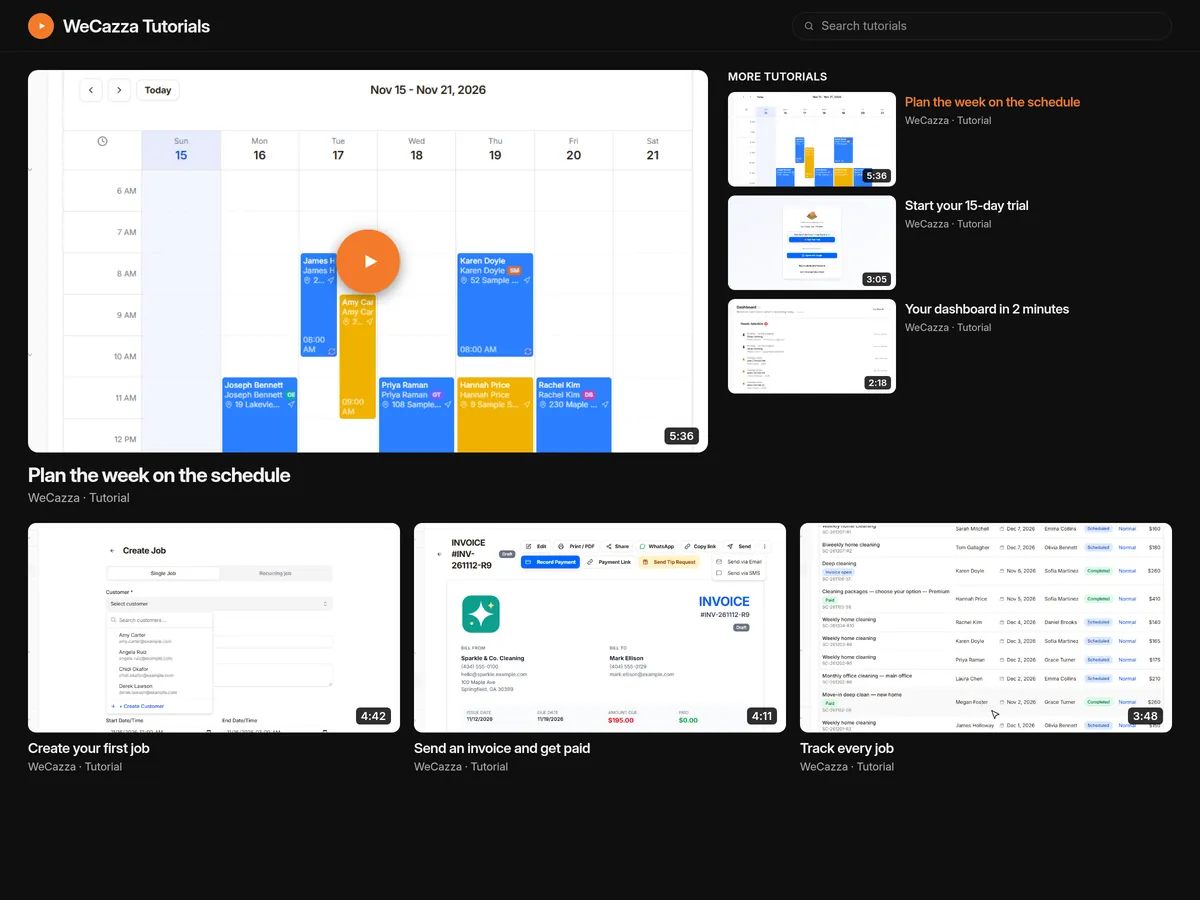

The same steps the video tutorials show, written out so you can follow them at your own pace.
Create your account at app.wecazza.com with email or Google. A card is required at signup, and the trial gives you full access for 15 days. Nothing is charged until day 16, so if you cancel before then you pay nothing. When you log in, the Getting Started list shows five steps for your first day. Follow them in order and you will have a working setup before your first real job.
To add one customer, open Customers, click Add Customer, type the name and an email or phone number, and click Create. If you already have a list, click Import Customers and choose a CSV file. WeCazza recognizes exports from Jobber, Housecall Pro and ServiceTitan. From other tools or a spreadsheet, you match your columns to the WeCazza fields.
The import brings in your customer list only. Jobs, recurring schedules, invoices and past history are not imported, so plan to recreate your active recurring clients. If the file gives you trouble, the founder is available for a call: write to [email protected].
Open Jobs and click Create Job. Pick the customer, and the address fills in by itself. Give the job a title, set the date and time under Scheduling, choose a service from your price list and pick the cleaner. After you click Create Job, it appears on your Schedule, and you can click it any time to see the details.
Most cleaning clients come back every week or every other week. Open Jobs, go to the Recurring Jobs tab and click New Recurring Job. Choose the customer, the frequency, the day, the start time, how long the visit takes, the first date, the service and the cleaner. WeCazza then fills your calendar. If one visit changes, you can edit only that visit or all of them.
Open Team, click Invite Member and type your cleaner's name and email. The cleaner role is already selected, so just click Send Invitation. Your cleaner gets an email, creates a password and is in. The invitation arrives in English and stays valid for seven days. If someone on your team won't use the app, tick the box at the bottom: they still show up on your schedule and payroll.
Each plan includes a number of team members: 2 on Starter, 10 on Pro and unlimited on Premium. Extra members cost $15/month each on Starter and $12/month each on Pro.
Open Completion Checklist in the menu, then My checklists, and click New Template. Name it, for example Standard Clean, and add your tasks one by one. Turn on Photo required for any task where you want proof of the work. When you create a job, pick the checklist and your team will see it on that job.
To accept cards, open Settings, go to the Integrations tab and click Set Up Payments under Accept Payments. Stripe processes your customers' cards and guides you through its own setup. Card payments cost the Stripe fee plus 1% per transaction.
To send an invoice, open Invoices, click it, check the customer, service and amount, and send it by email, text message, WhatsApp or payment link. When a customer pays you directly in cash, by check or with Zelle, click Record Payment and choose the method. The invoice is then marked as Paid.
If you use QuickBooks Online, WeCazza syncs customers, estimates, invoices and payments with it in both directions, with sales tax calculated. Open Settings, click the Integrations tab, find QuickBooks Integration and click Connect. Then follow the steps QuickBooks shows you.
What happens with your plan, your card and your data.
Open Settings and click the Billing tab to see your current plan and billing history. Plans cost $33.97/month for Starter, $97/month for Pro and $297/month for Premium. Paid yearly, they cost $339, $967 and $2,849. You can upgrade at any time and the change takes effect right away. A downgrade takes effect at the end of the current billing period.
There is no contract. You can cancel from your account settings or by emailing support, and the cancellation takes effect at the end of your current billing period. During the trial, cancel before day 16 and you are not charged at all. The full rules are in our Terms.
Deleting is different from cancelling: it removes your account and business data for good. Sign in, click your name in the bottom-left corner to open Account Settings, scroll to Danger Zone and click Delete My Account. If you own the organization, this deletes the whole organization, including your team's data, so transfer ownership first if the business should continue. Export what you need before you start, because deletion cannot be undone. All the details are on the delete account page.
The app is translated into English, Spanish and Portuguese, and each team member picks their own language. The video tutorials have subtitles in all three. Use the EN, ES and PT buttons at the top of this page to read this help center in your language.
Email [email protected] from the address on your account, so we can find it quickly. Tell us your business name, what you were trying to do and what you saw on the screen. A screenshot of the error saves a lot of back and forth.
Quick answers to common questions
Visit app.wecazza.com and click 'Start Free Trial'. You can sign up with email or Google. Your 15-day free trial gives you full access.
Plans start at $33.97/month (Starter). Professional and Premium plans offer more features and team members.
Open Settings, go to the Integrations tab and click Set Up Payments: Stripe guides you through the setup in about 5 minutes. Once connected, customers can pay invoices online instantly.
Yes. You import your client list yourself from a CSV file exported from your current software: go to Customers → Import. If you need help, the founder is available for a call.
Yes! When creating a job, toggle 'Recurring' and set the frequency. Jobs will be created automatically on your schedule.
Yes. Payments are processed by Stripe; we never store card numbers. Data travels over HTTPS.
WeCazza looks at your scheduled jobs, locations and crew and suggests a better order of stops. Results vary by business.
Yes! WeCazza is fully translated in English, Portuguese, and Spanish. Each team member can choose their preferred language.
The trial lasts 15 days. A card is required at signup, and the first charge happens on day 16. Cancel before day 16 and you pay nothing.
When your customers pay by card, the cost is the Stripe fee plus 1% per transaction. Cash, check and Zelle payments are recorded with Record Payment.
Cancel anytime from your account settings or by emailing support; there is no contract. To erase your data for good, follow the steps on the delete account page.
Learn WeCazza in minutes with our step-by-step video guides


Narration uses a synthetic (AI-generated) voice. Subtitles in English, Portuguese and Spanish.
Our support team responds within 24 hours during business days. Premium plan includes priority phone support.
[email protected]